
|
|
|
|
DiskSavvy Server Configuration
DiskSavvy Server provides a large set of configuration options allowing one to customize product features and easily integrate the product into a user-specific network environment. In order to open the main options dialog, press the 'Options' button located on the main toolbar. The 'General' tab includes a set of general purpose options allowing one to customize the product for user-specific needs. 
DiskSavvy Server Advanced Configuration Options The 'Advanced' options tab provides the ability to configure the maximum number of total errors, the maximum number of consecutive errors, the minimum amount of the free system memory, the disk space analysis tasks logs directory, the disk space analysis errors logs directory, the error e-mail notifications address and periodic status reports notifications. 
DiskSavvy Server Reports Configuration Options The 'Reports' tab provides the ability to control and customize various types of disk space analysis reports. The 'Keep in Reports Directory' option controls how many report files for each disk space analysis command are kept in the reports directory when automatic generation of HTML, PDF, XML, Excel CSV or text reports is enabled. When the number of report files in the reports directory reaches the specified limit, DiskSavvy Server will automatically delete oldest report files. The 'Keep in SQL Database' option controls how many disk space analysis reports for each disk space analysis command are kept in the SQL database when automatic generation of SQL database reports is enabled. 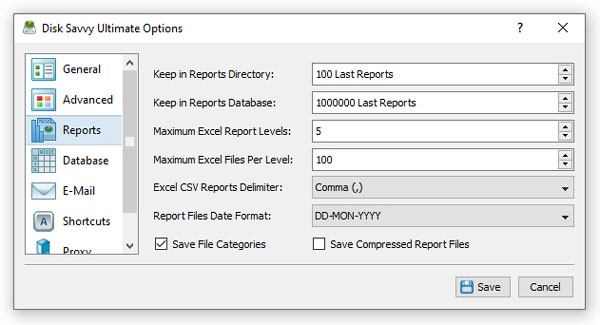
The 'Excel CSV Reports Delimiter' option provides the ability to set a custom field delimiter used to save Excel CSV reports. The 'Report Files Date Format' allows one to customize the date format used in disk space analysis reports. The 'Save File Categories' option enables export of second-level file categories in disk space analysis reports. The 'Save Compressed Report Files' option enables compressed report files for HTML, CSV, XML and text reports. DiskSavvy Server SQL Database Integration DiskSavvy Server provides the ability to save disk space analysis reports to an SQL database allowing one to keep a history of reports for future review and analysis. In order to enable automatic SQL database reports for a disk space analysis command, open the disk space analysis command dialog, press the 'Options' button, select the 'Advanced' tab, enable the 'Save Report' option, select the 'SQL Database' report format and press the 'Save' button. 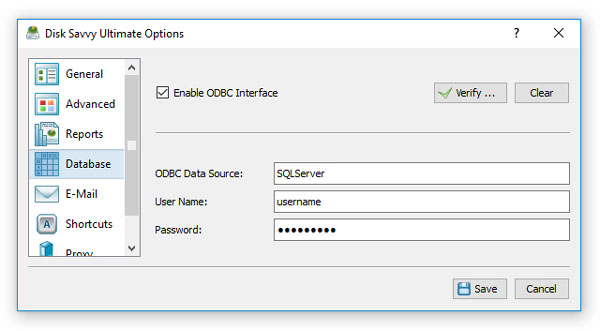
DiskSavvy Server exports SQL database reports through the ODBC database interface, which should be configured to operate properly. In order to configure the ODBC database interface, open the main options dialog, select the 'Database' tab, enable the ODBC database interface, specify the ODBC data source, ODBC user name and password to use to save reports to the SQL database. DiskSavvy Server User Name, Password and Ports The 'Server' tab allows one to change the DiskSavvy Server user name and password (default is admin/admin) used by the DiskSavvy client GUI application and the DiskSavvy command line utility to login to DiskSavvy Server. In addition, the user is provided with the ability to change the default TCP/IP port used by the DiskSavvy server. 
Finally, DiskSavvy Enterprise provides the ability to enable a web-based management interface allowing one to control disk space analysis operations and review disk space analysis results using a regular web browser locally or through the network. In order to be able to control DiskSavvy via the network, the server control port and/or the web-based interface port should be open in the server's firewall. DiskSavvy Server E-Mail Notifications Options DiskSavvy Server and DiskSavvy Enterprise provide the ability to send E-Mail notifications when a user-specified disk space analysis rule is triggered for one or more disks or directories. 
In order to configure an SMTP E-Mail server to use to send E-Mail notifications, open the main options dialog, select the 'E-Mail' tab, enter the SMTP server host name, SMTP server port, SMTP user name, password and the source E-Mail address to use to send E-Mail notifications.
|
DiskSavvy News
|


