
|
|
|
|
DiskSavvy Server GUI Application
The DiskSavvy Server GUI application allows one to connect to the DiskSavvy server locally or through the network, configure disk space analysis operations, schedule periodic disk space analysis operations, review disk space analysis results, generate charts and save various types of reports. Normally, the DiskSavvy client GUI application connects to the DiskSavvy server using the default user name and password (admin/admin), but the user is provided with the ability to change the user name and password on the DiskSavvy Server options dialog. 
All communication messages sent between the DiskSavvy client GUI application and the DiskSavvy Server are always encrypted using the AES-256 encryption algorithm and all the transferred information is fully protected from unauthorized access. Once the DiskSavvy client GUI application is connected to the DiskSavvy server, it shows the list of configured disk space analysis commands and provides the ability to start/stop disk space analysis operations, review disk space analysis results and save various types of disk space analysis reports. 
In addition, the DiskSavvy client GUI application allows one to scan the network, automatically detect all network servers and NAS storage devices, discover all accessible network shares and analyze disk space usage in hundreds of servers and NAS storage devices on the network. In order to perform a simple disk space analysis operation using the DiskSavvy client GUI application, press the 'Analyze' button located on the main toolbar, add one or more disks, directories or network shares to analyze and press the 'Analyze' button. For advanced disk space analysis options press the 'Options' button located on the 'Analysis' dialog. 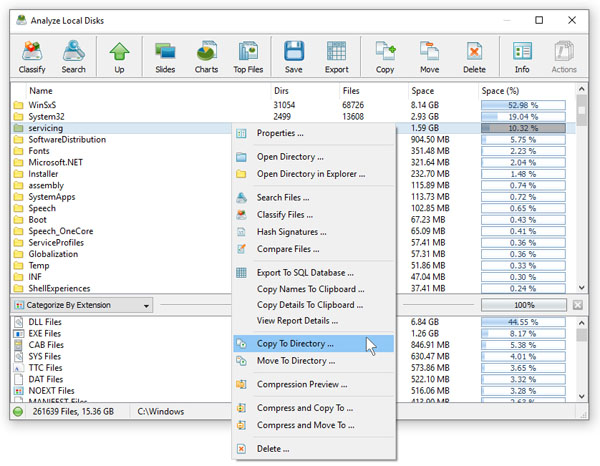
When the disk space analysis process will be completed, DiskSavvy will display the disk space analysis results dialog showing the analyzed disks, directories and network shares sorted by the amount of the used disk space. In addition to the disk space usage results displayed in the top view, the bottom view will show categories of files according to the currently selected file categorization mode. 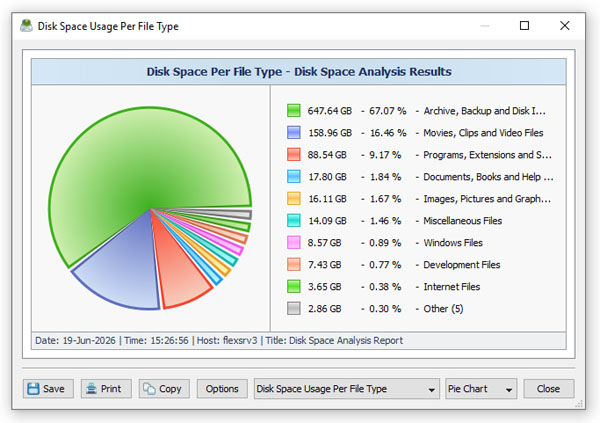
DiskSavvy is capable of categorizing disk space analysis results by the file type, extension, creation, last modification and last access dates, user name, etc. In order to change file categories displayed in the bottom view, click on the file categories drop box and select an appropriate file categorization mode. In addition, the DiskSavvy client GUI application allows one to filter disk space analysis results by the file category, extension, user name, etc., save various types of disk space usage reports, generate pie charts and perform file management operations on files or categories of files. Analyzing Network Servers and NAS Storage Devices In order to simplify analysis of network servers and NAS storage devices, the DiskSavvy client GUI application provides the ability to scan the network, detect servers and NAS storage devices and then analyze all accessible network shares in one or more servers or NAS storage devices. In order to detect network servers and NAS storage devices, press the 'Network' button located on the main toolbar and wait until DiskSavvy will finish scanning the network. 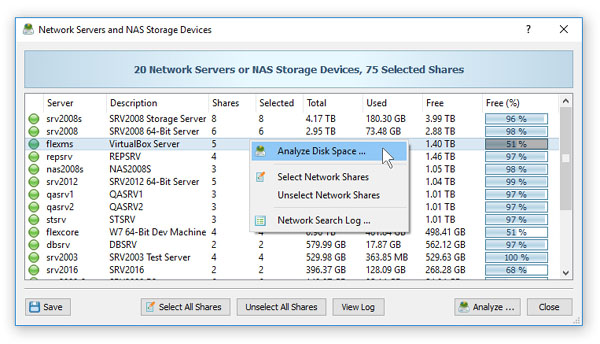
Once the network scanning process is complete, DiskSavvy will show the list of detected servers and NAS storage devices. For each network server or NAS storage device, DiskSavvy will show the server name, the server comment, the number of accessible network shares, the total amount of disk space, the amount of used disk space and the amount of free disk space. In order to see the list of network shares for a network server, click on the server item in the network servers view. In order to analyze one or more servers or NAS storage devices, select the required servers in the network servers view and press the 'Analyze' button. 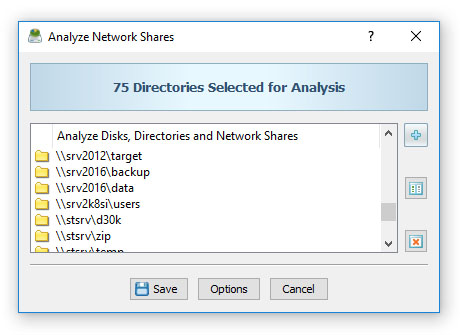
The DiskSavvy client GUI application will automatically create a new disk space analysis command, add all accessible network shares hosted on the selected network servers and NAS storage devices to the list of network shares to be analyzed and start the disk space analysis operation. Once the disk space analysis process will be completed, DiskSavvy will display the disk space analysis results dialog showing disk space usage for all analyzed network shares and allowing one to generate various types of disk space usage charts and save disk space usage reports into a number of standard report formats including: HTML, PDF, XML, Excel CSV and plain text.
|
DiskSavvy News
|


